Show Mobile Navigation

Socialize

Latest Admissions

Latest Results

About

Subscribe To Get All The Latest Updates!

email updates
Apple Articles
Showing posts with label Apple Articles. Show all posts

Wednesday, 25 January 2017

How to wirelessly charge your iPhone:

Unknown - 22:15

Wireless charging could be coming to the iPhone 7, but why wait when you can use it today?

Wireless charging has been a feature of many flagship Android smartphones for some time now, but the technology has yet to make an appearance on Apple’s flagship smartphone, the iPhone. Here, we explain what wireless charging is and show you how to wirelessly charge your iPhone.

Can I use wireless charging on my iPhone? How can I wirelessly charge my iPhone? What is wireless charging? 

Wireless charging has been a feature of many Android smartphones for some time now, but the technology has yet to make an appearance on Apple’s flagship smartphone, the iPhone. Rumours suggest it might make an appearance on the upcoming iPhone 7, but nothing has been confirmed. While it’s arguably not a big deal to some people, there are others that would like to take advantages of the slightly easier life that wireless charging enables. Here, we explain what wireless charging is and show you how to wirelessly charge your iPhone 5, 5c, 5s, 6, 6 Plus, 6s and 6s Plus.

How to wirelessly charge your iPhone: What is wireless charging?

Okay, before we go any further we should probably explain what wireless charging is. Contrary to the name, wireless charging isn’t actually wireless as your phone won’t be charged automatically when in range of a wireless charging pad (like Wi-Fi) – instead, wireless charging is often used as a term to describe inductive charging, which make use of coils to transfer energy and still require the smartphone to be placed on the charging pad for power.
The charging pad itself isn’t really wireless either, as it requires a power supply like any other charger to function.
Instead, wireless charging offers consumers the ability to simply put their smartphone (or tablet, etc) on a surface and be provided with power without needing to plug their phones into the mains. Although it’s fairly simple, it means that users won’t need to hunt down a cable when charging their phones before bed – they need only place it on a wireless charging-enabled surface.

How to wirelessly charge your iPhone: Third-party options

While wireless charging may not be featured on the iPhone by default, there are options for Apple fans, be it in the form of a receiver or a case. Here are a handful of ways that you can enable wireless charging on your iPhone: 

iQi Mobile

Those looking for wireless charging without having to use a bulky case might want to take a look at iQi Mobile, a 0.5mm thick wireless charging receiver that sits between your existing iPhone case and your iPhone. The beauty of being a receiver means that it’s compatible with any Lightning-enabled iPhone, from the iPhone 5 to the iPhone 6s Plus.
The receiver features an incredibly thin cable with a lightning connector at the end, which bends around the bottom of your phone and sits permanently in the Lightning jack. The receiver works specifically with the Qi wireless charging format, so that’s something to keep in mind when buying a wireless charging pad (you can buy an iQi Mobile receiver and charging pad for £35.99 here).
The benefit of the iQi Mobile receiver is that you can keep your existing case and add wireless charging to your iPhone, and it isn’t too expensive either at only £12.99 on Amazon at the time of writing.

Bezalel Latitude

Those looking for something a little more ‘complete’ than the likes of iQi Mobile may be interested in the Bezalel Latitude for the iPhone 6/6s. While many wireless charging accessories specify a certain wireless charging standard, like Qi, the Latitude will work with any type of charging system – according to the manufacturer, anyway. The company claims that it’ll work with the wireless charging stations available at the likes of Starbucks and McDonalds, as well as the IKEA wireless charging furniture and any current wireless charging pads you may already own.
Unlike other options on the market that are fairly bulky and unattractive, the Latitude looks sleeker and more Apple-esque in design – and a price tag to match, setting customers back £44 on Amazon at the time of writing, and that’s without a wireless charging pad. It may be a bit on the slow side though, with a maximum output of 5V/1A – those interested in something faster may want to look at the below option, the FLI Charge.

FLI Charge

One of the biggest downsides to using wireless charging when compared to traditional wired charging is that it generally takes a lot longer to charge your phone, especially those with large capacity batteries like the iPhone 6s Plus. It’s an issue that needs to be overcome before people untether themselves from charging cables, and the FLI Charge system could be the product to do that.
The FLI Charge system won’t only provide wireless charging capabilities for your iPhone, but also drones, tablets, smart watches, speakers and even GoPros – essentially anything that charges via a USB/MicroUSB connection, via a range of accessories. The FLI Charge system comprises of the FLIway, the charging panel, the FLIcase for smartphones, FLIcube for USB-powered devices and FLIcoin for micro-USB powered devices.
But what makes FLI so different? Instead of using inductive charging technology like the likes of Qi, FLI uses conductive technology which the company claims “charges as fast as plugging into a wall” and can charge up to eight devices simultaneously, a feature not currently possible with inductive charging which offers around ~60 percent efficiency. What’s better is that due to the innovative design of the system, you don’t have to worry about device orientation, an issue with current solutions. It also constantly detects the surface for unapproved objects (i.e. Apple Watch, water) and will shut the power transfer down and hopefully avoiding any lasting damage to the product or system.
The system is live on IndieGoGo at the time of writing and has surpassed its $100,000 funding goal with 10 days left to go. Those interested can back the project here, with an estimated delivery of October 2016.
Source: macworld

Tuesday, 17 January 2017

10 Essential Accessories for the Apple iPhone 7

Unknown - 10:00

Maybe you count yourself amongst the scores of fortunate recipients of a new phone during the holiday season. I myself ended up upgrading to a new iPhone 7 Plus unexpectedly during the holidays after accidentally walking into the ocean with my device still in my pocket. In hindsight, a foolish but sort of poetic way to destroy a device, an act of unforced obsolescence.
Despite the hefty price of a replacement – and the eventual loss of the headphone jack – I’ve been quite pleased since upgrading from my slowly ailing older iPhone. Of course, this means I’ve become personally more interested and invested in all varieties of options related to accessorizing my new iPhone, with the following list of designs at the top of my functional and fashionable list:

1. KAMERAR ZOOM Lens Kit for iPhone 7 Plus:  The new iPhone 7 Plus dual camera has proven a noticeable and significant improvement over my older 6 Plus kit, especially when shot using a 3rd-party RAW compatible photo app. But I’ve been still left wanting in one category of photography: macro. This affordable add-on slides right over the existing lens when desired, offering 10x magnification with a 2-element lens.

2. Hardgraft Fuzzy iPhone 7:  Only the obsessively clean need apply for these iPhone cases covered in a super soft, fuzzy suede-like material.
3. TwelveSouth HiRise 2:  As an owner of the original HiRise, I can attest TwelveSouth’s dock is the most Apple aesthetic complementary desktop spot to park and charge that I’ve owned. This new design is twice as heavy while requiring one-third less of a footprint, a refinement of an already good design.

4. Native Union TAG Cable:  Native Union’s small looped leather tag presents the semblance of the small sort of tag fashion brands adorn bags and luggage with. But this tag is different, a TAG that hides a Lightning-to-USB charging connector inside, a smartly dressed tech-in-disguise accessory worthy of keeping looped onto a handbag or backpack wherever you go.

5. Libratone Q Adapt In-Ear Earphones:  The countless missives about Apple’s decision to jettison the standard headphone jack warrants merit. I’m not super pleased my fantastic pair of Sennheiser cans won’t connect without the (included) Lightning dongle. But moving forward, it does offer me the opportunity to check out the some new earphone options, with Libratone’s active noise-canceling in-ear models at the top of my list for their ergonomic design and iPhone-friendly features.

6. Peel Super Thin iPhone 7 Case:  The first two accessories I immediately purchased for my new phone was a screen protector (I’ve had good experiences with Belkin’s ScreenForce Invisiglass since getting a complimentary sample at last year’s CES) and getting my matte black phone into a protective case. Peel makes possibly the most discreet and thin cases, all sans any annoying and unnecessary branding. It looks and feels almost like nothing is there, but effectively keeps the scratches at bay.
7. This Is Ground Lupito Craft Edition:  As a frequent traveler who needs to plug in an iPhone and iPad in airports, hotels, and anywhere I can find an outlet, I’ve come to really appreciate the fashionable functionality of everything This Is Ground designs. These small looped leather thing-a-majigs keep my plug-in cords and charger neatly stored away between outlet hunts.

8. Mujjo Single Layered Touchscreen Gloves:  I keep a pair of these confidently textured and touchscreen-compatible gloves in my backpack wherever I go. Touchscreen-friendly, textured across their whole surface for improved grip, with a magnetic leather closure that works great and looks equally as good, even this Southern California kid can appreciate the merits of a good pair of screen-compatible gloves.

9. KILLSPENCER Leather Snap Case:  For those prone to drop their phone while snapping a photo (or perhaps while sharing it while passing it along to friends), this leather case with integrated wrist loop offers an extra bit of insurance. The leather case can be further customized with embossed monogramming, adding an extra identifiable and distinguishing mark from the legions of other iPhones out there.
10. Moment Lens and Mount System:  Hands down the best add-on lenses for mobile photography, this lens system feels satisfying in heft and finish, operating like miniaturized premium DLSR lenses compared to competing cheap plastic add-ons. If you’re serious about traveling light with your phone as your primary camera, Moment’s quartet of macro, fisheye, wide, and tele lenses offer a no-compromise option extending the capabilities of the already impressive improvements made to the dual-lens iPhone 7 Plus specs.
Source: design-milk

Sunday, 1 January 2017

Why Apple Didn't Usher in the Era of the Sapphire Crystal Display Screen

Unknown - 05:44
Why Apple Didn't Usher in the Era of the Sapphire Crystal Display Screen

Apple’s iPhone 6 and 6 Plus are two powerful, elegant and now multi-million-unit selling devices that are anything but disappointing. Yet they did manage to disappoint a contingent of iPhone watchers who believed the latest Apple mobile phones displays would include a material with near-mythic qualities: sapphire crystal.

In a YouTube video that has since been widely shared, Marques Brownlee, a student at Stevens Institute of Technology in Hoboken, New Jersey, claimed to have an iPhone 6 prototype and demonstrated the properties of what he thought was its sapphire crystal display cover. As he bent, stabbed and scratched the paper-thin display, Brownlee accurately noted that the home button and iSight camera lens cover in the iPhone 5S contain sapphire crystal (and now, we know the home button and iSight camera lens cover in the iPhone 6 and iPhone 6 Plus do, too).

The video, which has accrued more than 7 million views, was posted in July, months before Apple’s official iPhone 6 launch. Brownlee said the display cover came “straight off the assembly line,” but Apple is known for experimenting with different designs and technologies. One thing is for certain now, though: There is no sapphire in the iPhone 6 or 6 Plus display.

Why not use sapphire glass?

According to a recent teardown report, both iPhone 6 devices actually use Gorilla Glass 3 to protect the sensitive display technology underneath, which is the same glass Apple used on the iPhone 5S.

Sapphire crystal is reportedly significantly stronger and more scratch-resistant than Corning’s Gorilla Glass, and can bend as well or better than Gorilla Glass. So why didn’t Apple use it?

In the months leading up to the iPhone 6 debut, all signs pointed to Apple launching its first sapphire crystal display smartphone in September. Reports stated that the company had built a sapphire crystal production facility with partner GT Advanced Technology in Arizona, and would start mass production by mid-summer.

Then the leaks began. While Apple is known for testing out multiple designs, all the leaked iPhone 6 chassis looked virtually the same (and we later learned they were quite accurate). There was good reason to believe that Brownlee's video with leaked production samples did, in fact, feature a sapphire crystal display.

Minerals expert and Imperial College professor Neil Alford, who advised Apple to use sapphire crystal, didn't seem particularly surprised at the sapphire crystal display omission. He told Mashable that Apple’s choice may have boiled down to simple economics; there was also the issue of supply.

“At the volumes they needed, they also needed a guaranteed supply. Big areas are intrinsically more problematic because the larger the area the more likelihood of a defect in the sapphire wafer,” Alford wrote in an email.

Although sapphire crystal is synthesized, larger panels (or wafers) often have imperfections. This is something Apple sought to address in a recent patent, which was granted to the company on Sept. 18. In it, Apple notes:

“Even in the absence of environmental damage to the substrate, the substrate is unlikely to be manufactured flawlessly so surface defects are likely to be present. The defects may dramatically reduce the strengths of the parts, so a thicker substrate and/or more surface finishing process may be used to improve the quality of the substrate, though these may substantially increase manufacturing costs.

In the patent, Apple sought to counter those inherent defects by applying multiple coatings of a comparatively softer and similar material to both sides of the sapphire wafer. The coating would not only create a near-perfect surface, but protect the sapphire wafer’s imperfections from reacting to stress of usage.

It unclear, though, if the process is effective. The largest Apple sapphire screen we've seen is the Apple Watch display, and that device won’t be available until next year. In the meantime, the iSight camera lens cover is rarely, if ever, touched — and the iPhone home button is about the size of a fingertip and on top of a moveable button which absorbs most of the impact stress.

Brownlee also said he's not surprised Apple made a last-minute change. “Apple is known to do that,” he wrote in an email to Mashable.

When I asked him if he'd considered the possibility that he simply got it wrong, he said yes. "[That] is why I did additional testing in a second follow-up video. But you can never underestimate just how quickly Apple can turnaround production and change their display technology (or any material),” Brownlee wrote. He added that he is still waiting on those test results.

In the meantime, if you’re wondering what a 4-inch-plus sapphire crystal touch screen feels like, look no further than the Kyocera Brigadier, a ruggedized phone (currently only available on Verizon) that features Kyocera's proprietary Sapphire Shield display, which the company has been developing for almost half a century.

This proves that a large sapphire touch screen is possible. Even so, Apple probably won’t build a smartphone with a sapphire crystal screen until the company is satisfied that it can do in a cost-effective manner and at scale.

Source: mashable

Wednesday, 21 December 2016

Unknown - 04:12

Don’t just fire off emails. Take time to craft each one.


Most of us are so comfortable communicating via email that we don’t give it much thought. We dash off messages while eating lunch with the other hand, riding the subway or sprinting to a meeting. But each time we mindlessly send an email, we’re missing out on meaningful business opportunities.
Let’s say you’re an entrepreneur, freelancer or small business owner who communicates with clients via email on a near-daily basis. That means you have a near-daily opportunity to enhance your reputation and build strong relationships with your clients — and you also have a near-daily opportunity to weaken said relationships and diminish your value in the eyes of your clients.
Thus, it’s essential to give email communications the attention they deserve. You (hopefully) already know it’s important to use a professional email address, employ proper grammar and spelling, and avoid using language that could be misinterpreted in a negative ways. Beyond these basics, there are several email etiquette strategies that can make or break your relationships with clients. Here are seven of them.

1. Determine whether your client likes email in the first place.

It’s easy to assume everyone’s default communication preference is email. In reality, some clients still like to communicate via the old-fashioned technologies known as the telephone or (gasp) in-person meetings. Before establishing an email relationship with a client, first ask if they want to communicate via email — then adhere to whatever preferences they share. Asking this question will communicate to clients that you’re truly invested in making their life easier.

2. Be responsive.

Nobody’s saying you need to be glued to your inbox 24/7. The point here is a client should never have to wonder if you’re going to get back to them, because by the time they’re asking that question, their trust in your professionalism has already started to erode. Whenever possible, make a habit of replying within 24 hours (and remember to use out-of-office reminders if you won’t be able to do so). Clients want to feel like they’re a priority and that you’re there to assist them when they need it.

3. Keep it brief.

The average office worker receives more than 100 emails a day, and odds are good your client isn’t an exception. If you consistently send them long, rambling emails, you’re going to get earmarked as an annoyance pretty quickly. In contrast, shorter emails are more likely to be read and processed. Before sending an email, challenge yourself todefine its goal — and scrap anything not in service to that objective. Then, aim to write the email in no more than five sentences.

4. Be friendly.

Obviously, don’t ramble on and on about the minutia of your life — that would antithetical to no. 3 above. But do open and close your email with friendly salutations that will help set a personable tone for your client communications. Making note of personal knowledge — like “Hope you had fun at your daughter’s play!” — can help maintain a sense of positivity and familiarity in your relationship.

5. Keep it organized.

Email overload costs companies billions each year, and a lot of it comes down to a lack of efficient communication in this medium. Just as no client wants to wade through giant walls of text, they also don’t want to scroll through pages upon pages of carets and irrelevant forwarded chains, only to still be left wondering how they’re supposed to respond. Any email you send should be kept as visually uncluttered as possible. It should also provide clear-cut information and highlight any actions that need to be taken. To that end, make a habit of adopting the following strategies:
  • Use a clear subject line. A client should be able to know what your email is about simply by reading the subject line. This means each new topic warrants its own email with its own specific subject. Whatever you do, don’t spend months communicating in the same thread with a (now irrelevant) subject line. It will make it that much harder for everyone to stay on top of things.
  • Distinguish who the email is for. Don’t include multiple peopleon an email unless they absolutely need to be part of a thread. If you are including multiple people, address them each directly in the body of the email so everyone knows what’s expected of them. Remember that classic email etiquette says the “To” field is reserved for people who need to take action on the email, while the “CC” field is meant for people who just need to be kept in the loop.
  • Include all the necessary information up front. Prioritize the specific over the general. Include every detail that might be needed for a client to make a decision or take action, and try to preempt any questions you know might arise from the content of your email. If you’re replying to an email, make sure you respond to every question posed in said email so the client doesn’t need to send you yet another query asking for additional responses. All of this will communicate to clients that you respect their time.
  • Highlight actions that need to be taken. Take a page out of Tim Ferris’ playbook and provide “if-then” guidelines for your clients. For example, you might say “If this looks good to you, then no reply is necessary.” Or “I can talk on the phone at 9:30 am EST. If that does not work for you, then please send me two times that would work.” This helps eliminate any doubt about the next course of action.
If you’re having trouble drafting an email that’s concise, organized and actionable, then take a few minutes to clear your head before tackling it again. Whatever you do, don’t just give up and send off a convoluted email. It’ll come back to bite you in the form of your client’s confusion or frustration.

6. Respect clients’ privacy.

When clients work with you, they implicitly trust you to keep their business information confidential. Honor that trust by making it a policy not to share your client’s messages, attachments, contact information, or files without their permission. If you have permission to share any of this information, make sure the entity you’re sharing with will also respect your client’s privacy. Failing to do this is a quick way to lose your client’s trust entirely (and possibly get you into hot water).

7. Read before you send.

How many anxiety attacks could be avoided if everyone in the country committed to proofing emails before sending them? Avoid the panic of realizing you misspelled your client’s name or forgot to include an attachment by carefully proofreading emails before hitting send. If you want to be extra cautious, consider sending the email to yourself and reading it in your inbox so you can see exactly how it will appear to clients. Only when you’re certain an email has followed all the guidelines on this list should you send it.
Employing these strategies might take more time than dashing off a missive from your iPhone on your way to lunch. But the extra thought and effort will pay off in the form of client trust and a reputation for stalwart professionalism.
Source: WorldTrendings

Monday, 19 December 2016

Alongside its 4K counterpart

Unknown - 00:35

Apple is reducing the price of its new 5K LG UltraFine Display by more than 25 percent as part of an effort to ease the transition to its new line of MacBook Pros. The special promotion, which amounts to a $349 price cut for the $1,299.95 monitor, brings the product’s price under $1,000. The company is also reducing the price on the 4K version from $699.95 to $524. Both products, designed in partnership between Apple and LG, are available on Apple’s online store, with the 4K model available now and the 5K model going on sale next month.


In addition to these display promotions, Apple is temporarily reducing the cost of its many USB-C adapters now that the new MacBook Pro only contains Thunderbolt 3 ports. In a statement, the company said it recognized that many professionals rely on legacy ports and older devices, and that the price cuts would stay in effect until the end of the year.
“We recognize that many users, especially pros, rely on legacy connectors to get work done today and they face a transition. We want to help them move to the latest technology and peripherals, as well as accelerate the growth of this new ecosystem,” Apple said. “Through the end of the year, we are reducing prices on all USB-C and Thunderbolt 3 peripherals we sell, as well as the prices on Apple’s USB-C adapters and cables.

Source: Worldtrendings

Official Reddit app finally adds iPad support in today’s update

Unknown - 00:32

It seems amazing that the official Reddit app has taken this long to add iPad support following the iPhone-only launch back in April, but it’s finally happened as the company has launched version 2.0. iPad support is the only new feature, alongside bug fixes for Reddit Live …
There are no additional features in the iPad version, it just looks less silly on an iPad screen.
Third-party apps remain popular even on iPhone, though a number of them briefly disappeared from iTunes earlier this year as Apple seemingly flagged them for NSFW content.The lack of iPad support has been all the more surprising given that Alien Blue, acquired by Reddit back in 2014, had an iPad-specific version that made it a popular choice.

Google Drive can now back up iPhones to make Android switching easier

Unknown - 00:11

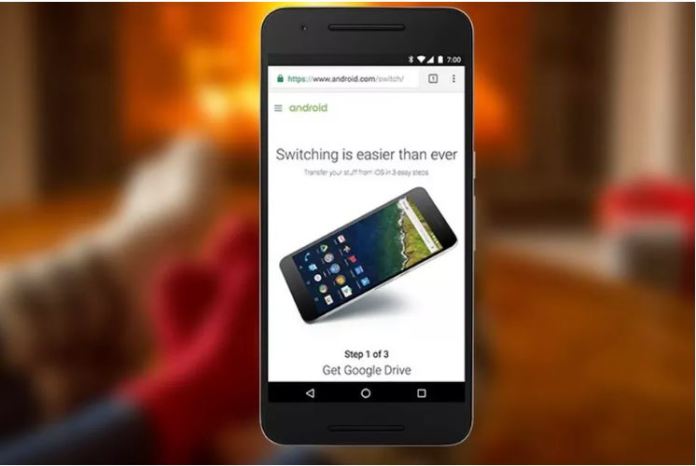
Google has updated its website that guides iPhone owners through the process of making the change to Android. But more importantly, the company is also adding a new feature to its Google Drive app on iOS: the ability to instantly back up your contacts, calendar, and camera roll and store it in the cloud. That way, whenever you buy a Pixel or some other Android phone, all your stuff will be waiting in Google’s various apps. It’s all automatic when done this way, as opposed to before when you’d have to upload this stuff from several different apps.
The new option is found in the settings menu under “backup.” Also it’s probably not very instant if you’ve got a lot of stuff on your iPhone; Google says it can take several hours in some cases, so you’ll want to have your phone plugged in and on reliable Wi-Fi during the process. The app must stay open and on screen, as well.
This is basically Google’s iOS answer to Apple’s Android app that similarly tries to ease the switching process. But Google Drive does a lot of other useful stuff, so the new backup utility is just a new addition to the list. Unfortunately, Google Drive won’t back up your texts or music library. For that, you’ll have to actually plug your iPhone directly into the Pixel or whatever Android phone you’re replacing it with. If that really seems like the right choice for you. The Google Drive update doesn’t seem to be out just yet. At least, I’m not seeing the backup feature in settings. But it shouldn’t be long.

Source:Worldtrendings
Previous
Editor's Choice